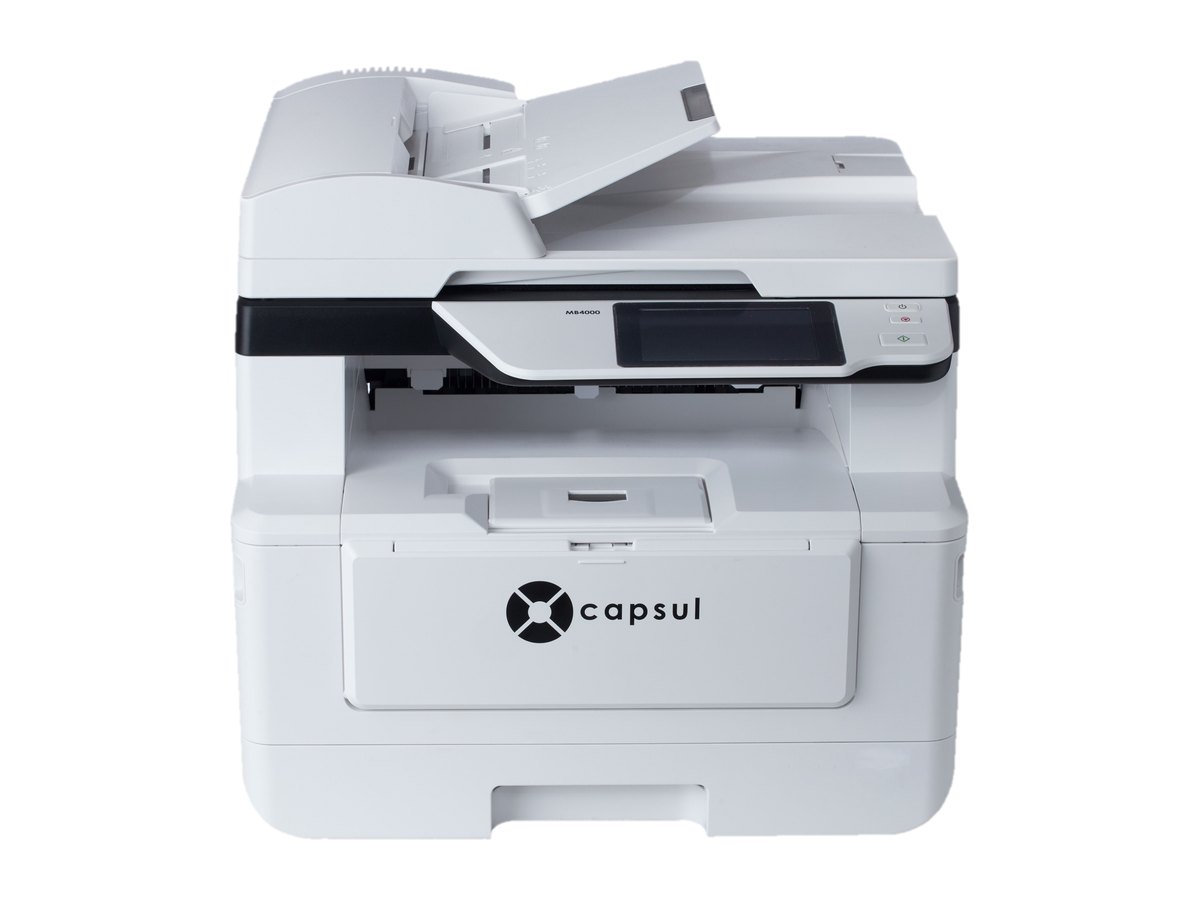
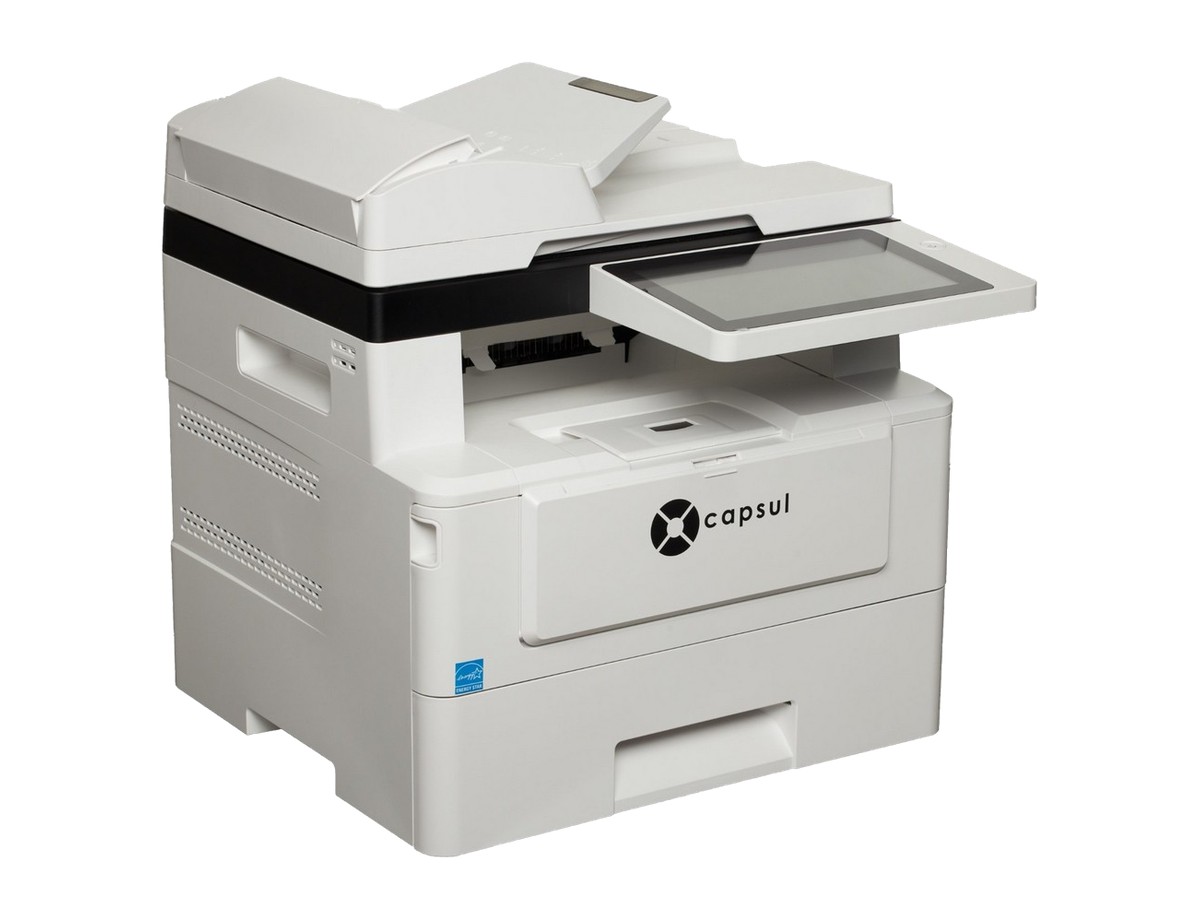
MB4500
The fastest desktop multifunction printer in the Capsul line: 45 pages a minute, run from a large 8″ color touchscreen.
- Print and copy
- 45 ppm
- Color touchscreen
- 8″
- Document feeder
- 75 sheets
Built for the office that never stops copying.
Copy, scan, and email from an 8″ color touchscreen, big enough to see every setting without squinting or scrolling.
Set a page down crooked and the MB4500 crops it, straightens it, turns it the right way up, and drops blank pages.
A 550-sheet paper drawer and a 75-sheet document feeder mean fewer refills and whole contracts scanned in one pass.
Set it up from box to first print.
Every step: tape and packing, the shipping spacers, toner, paper, and connecting to your network from the touchscreen.
Read the step-by-step setup guide →Stuck on a step? Email Capsul Support at support@capsuloffice.com.
Connect and print. No driver needed.
Computers and phones on the same network can print right away using what’s already built in. A driver is only needed to scan into desktop apps or to connect by USB.
- WindowsBuilt-in printing
- MacAirPrint
- iPhone and iPadAirPrint
- AndroidMopria
Specifications
Download the MB4500 datasheet (PDF)- Functions
- Print, copy, and scan
- Print and copy speed
- 45 ppm (A4), black and white
- Scan speed
- 33 ppm (A4)
- Resolution
- 1,200 × 1,200 dpi
- Two-sided printing
- Automatic
- Display
- 8″ color touchscreen
- Connectivity
- Wi-Fi, Ethernet, and Wi-Fi Direct
- Mobile printing
- AirPrint and Mopria
- Paper sizes
- A4, Letter, and Legal
- Paper drawer
- 550 sheets
- Manual feed
- 60 sheets
- Document feeder
- 75 sheets
- Scan destinations
- Email, USB, SMB, and FTP
- Smart scan
- Blank-page removal, rotation, deskew, and crop
- ID card copy
- Both sides on one page
- Toner yield
- 3,000, 6,000, 9,000, or 12,000 pages
- Drum yield
- 30,000 pages
- Dimensions
- 15.8 × 25.0 × 16.9 in
- Weight
- 28.7 lb
MB4500 questions
What can the MB4500 do?
It prints, copies, and scans. It prints and copies at up to 45 pages a minute in black and white, the fastest of any Capsul desktop printer, and scans at 33 pages a minute.
What does the MB4500’s smart scan do?
It removes blank pages and turns, straightens, and crops scans automatically, so scanned documents come out clean without editing.
Where can the MB4500 send scans?
To email, a USB drive, or a network folder over SMB or FTP, from a 75-sheet document feeder or the scanner glass.
What toner yields are available for the MB4500?
It uses the same TN4000 toner and DR4000 drum as the MB4000. Toner cartridges are rated for 3,000, 6,000, 9,000, or 12,000 pages, and the drum for about 30,000 pages.
Can I print to the MB4500 from a Mac, iPhone, or Android phone?
Yes. Macs, iPhones, and iPads print to it over AirPrint, Android devices use Mopria, and Windows computers use built-in printing, so there’s no driver to install for everyday printing. A driver is only needed to scan into desktop apps or to connect by USB; Capsul Support at support@capsuloffice.com can send it.
How is the MB4500 different from the MB4000?
The MB4500 prints and copies faster, at 45 pages a minute versus 40, runs from a larger 8″ touchscreen instead of 4.3″, and holds 550 sheets in its paper drawer instead of 250. Both scan at 33 pages a minute from a 75-sheet feeder with smart scan cleanup, and both use the same toner and drum. See the full comparison.
What warranty does the MB4500 have?
The MB4500 has Capsul’s one-year limited warranty, which covers hardware failures caused by manufacturing defects from the date of purchase.
Where can I buy the MB4500?
Capsul is sold through authorized IT and office-technology providers. Use Where to buy and we’ll introduce you to one near you.
How do I connect the MB4500 to Wi-Fi?
Tap the gear at the top right of the home screen, then Show Machine Status. Open the Tools tab, tap Network Settings, then Enable. Choose Wi-Fi Station Mode and tap Save, then open Wi-Fi in the Network Settings list, pick your network, and enter its password. See every step.
Who can help me set up my MB4500?
Email Capsul Support at support@capsuloffice.com. The team handles common setup questions like Wi-Fi and driver installation. For network or operating-system problems, your IT provider is the best first call.